

Custom Fields
Every organization, team, and security assessment is unique. To accommodate your specific metadata, tracking, and workflow requirements, the Redguard Portal provides a flexible, powerful Custom Fields engine. Custom Fields allow you to attach specialized, structured attributes to your security findings.
Configuration Levels
Custom fields can be defined at two distinct levels depending on their intended scope:
- Organization Level: Configured by organization administrators. These fields are globally available and render on all findings across the entire organization (e.g., an internal ticket reference like a Jira Ticket ID or GitLab Issue).
- Asset Group Level: Configured at the specific Asset Group settings page. These fields only appear on findings whose associated assets belong to that particular Asset Group. This is useful for group-specific metadata (e.g., PCI-DSS compliance scope or internal billing codes).
Custom Field Types
The Redguard Portal supports eight robust custom field data types to ensure your metadata is structured and validated:
- Boolean: A binary true/false checkbox field. Useful for flagging simple states (e.g., Remediation Deferred or External Facing).
- String: A short, single-line text input field. Ideal for identifiers, references, or brief codes (e.g., Jira Ticket ID).
- Integer: A numeric field restricted to whole numbers. Perfect for scores, counts, or legacy IDs.
- Float: A numeric field that supports decimals. Useful for advanced scoring metrics or financial estimates.
- Date: An interactive, browser-native date picker. Used to set target deadlines or tracking milestones (e.g., Remediation Deadline).
- Person: An interactive lookup field mapped to your organization's user directory. It supports both single-person assignment and multi-person assignments if "Allow Multiple" is selected. Great for designating owners or investigators (e.g., Remediation Owner).
- Select: A single-choice dropdown menu from a list of predefined options. Useful for categorizing findings (e.g., Root Cause Category).
- Tags: A multi-choice tag selector. Allows users to attach one or more predefined tags/labels to a finding (e.g., Affected Compliance Standards).
Managing Custom Fields
Organization Administrators can configure and manage Custom Fields directly within the portal settings.
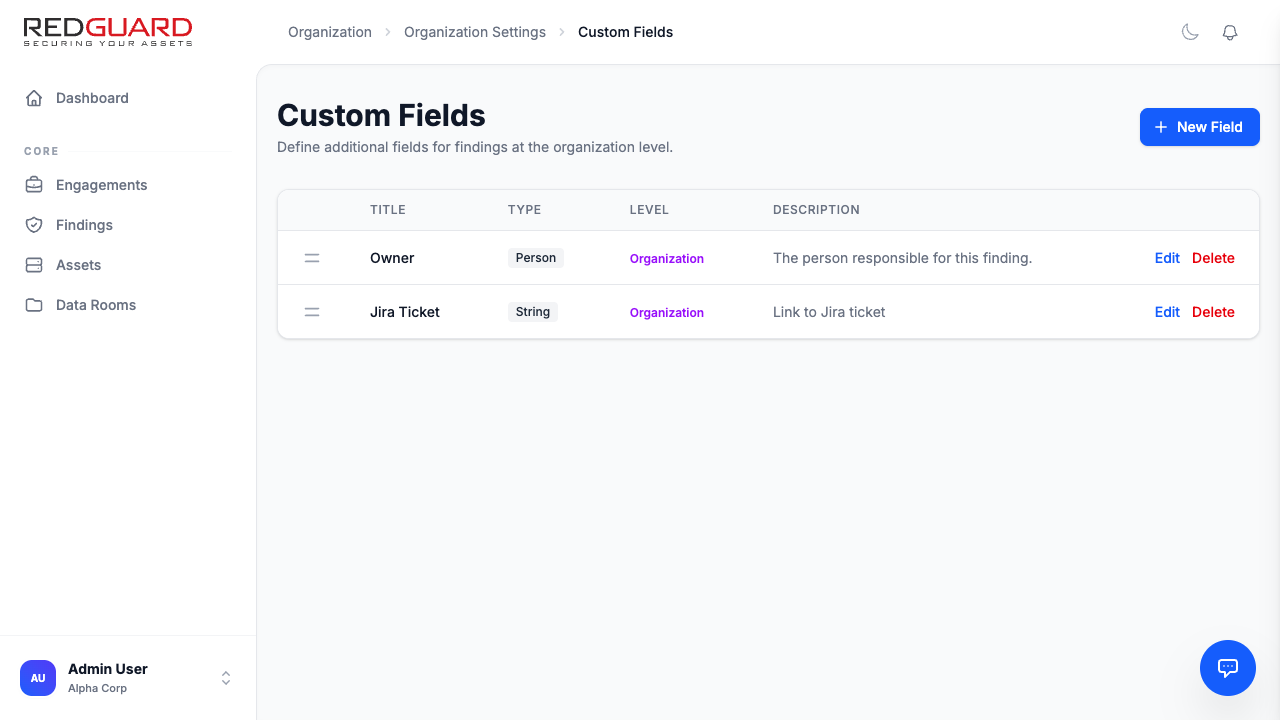
Creating a New Custom Field
- Navigate to Organization Settings > Custom Fields in your profile workspace, or go directly to your Asset Group settings page.
- Click New Field in the upper-right corner.
- Provide a Title (how it will appear on findings) and optional Description (to guide users).
- Select the appropriate Field Type from the dropdown menu.
- If you select Select or Tags, an options configurator will appear where you can enter the list of allowed values.
- Click Create Field.
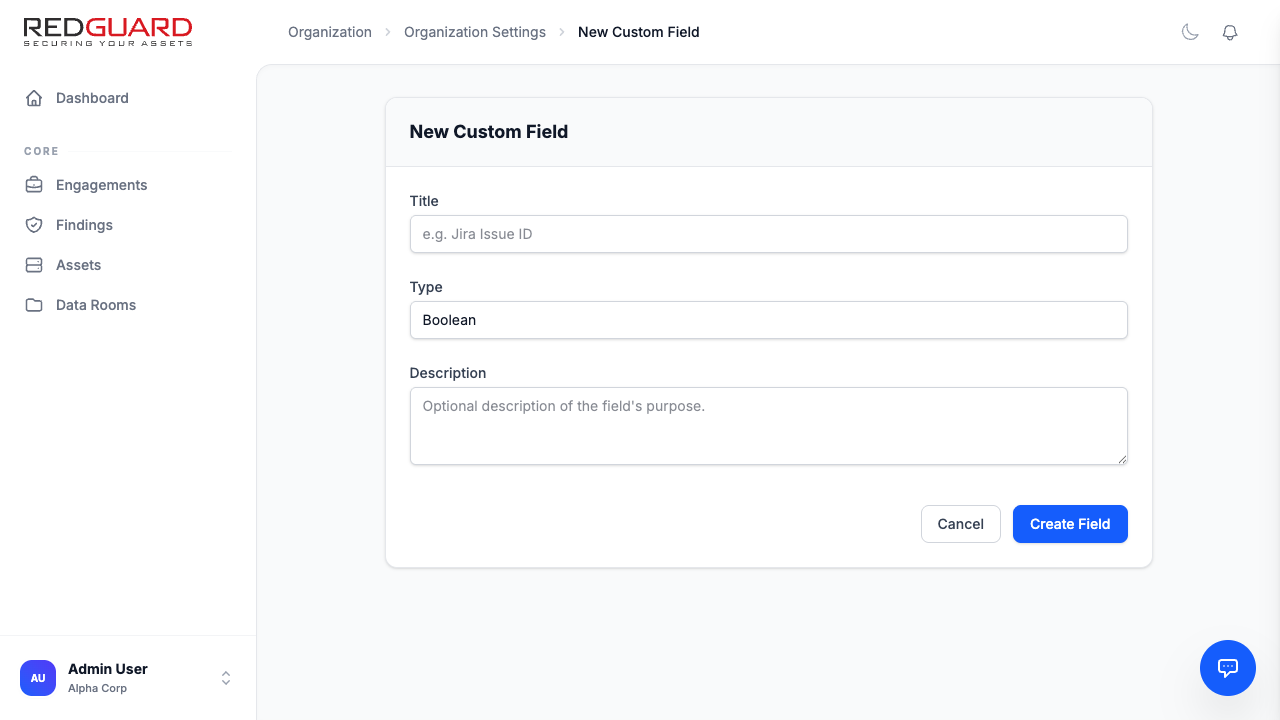
Automatic Database Sweeping & Syncing
A core capability of the Redguard Custom Fields engine is its intelligent integrity sweep. When you modify or delete options for Select or Tags field types:
- Option Renaming: If you rename a select option (e.g., changing "High Priority" to "Critical SLA"), the system automatically traverses all existing findings in the database and updates their selected values to match the new name.
- Option Deletion: If you delete an option, the engine safely sweeps your findings catalog:
- For Select fields, any finding currently utilizing the deleted option is cleared (reset to empty).
- For Tags fields, the deleted tag is automatically filtered out and removed from the finding's tags array, preserving any other selected tags.
Reordering Fields
To customize the order in which these custom fields appear on the finding detail and edit pages:
- Go to the Custom Fields configuration page.
- Use the grab handles on the left-hand column to drag and drop fields into your preferred hierarchy.
- Click Save Order.
- The findings forms will instantly reflect this new visual ordering.