

Getting Started
Welcome to the Redguard Portal. This guide walks you through authenticating to the platform, managing your profile, configuring two-factor authentication, and switching between multi-tenant organization workspaces.
Authentication & Multi-Tenancy
The Redguard Portal is built from the ground up as a secure, enterprise-ready multi-tenant application. When you sign in, your user identity is mapped to one or more authorized organizations.
- OAuth & Single Sign-On (SSO): Redguard supports Google and Microsoft SSO integrations for seamless corporate login.
- Standard Credentials: Alternatively, you can use standard password-based authentication with your registered email and password.
Managing Your Profile & Settings
Once logged in, click your user initials or profile avatar and "My Account" in the bottom-left corner of the sidebar shell to access the settings panel.
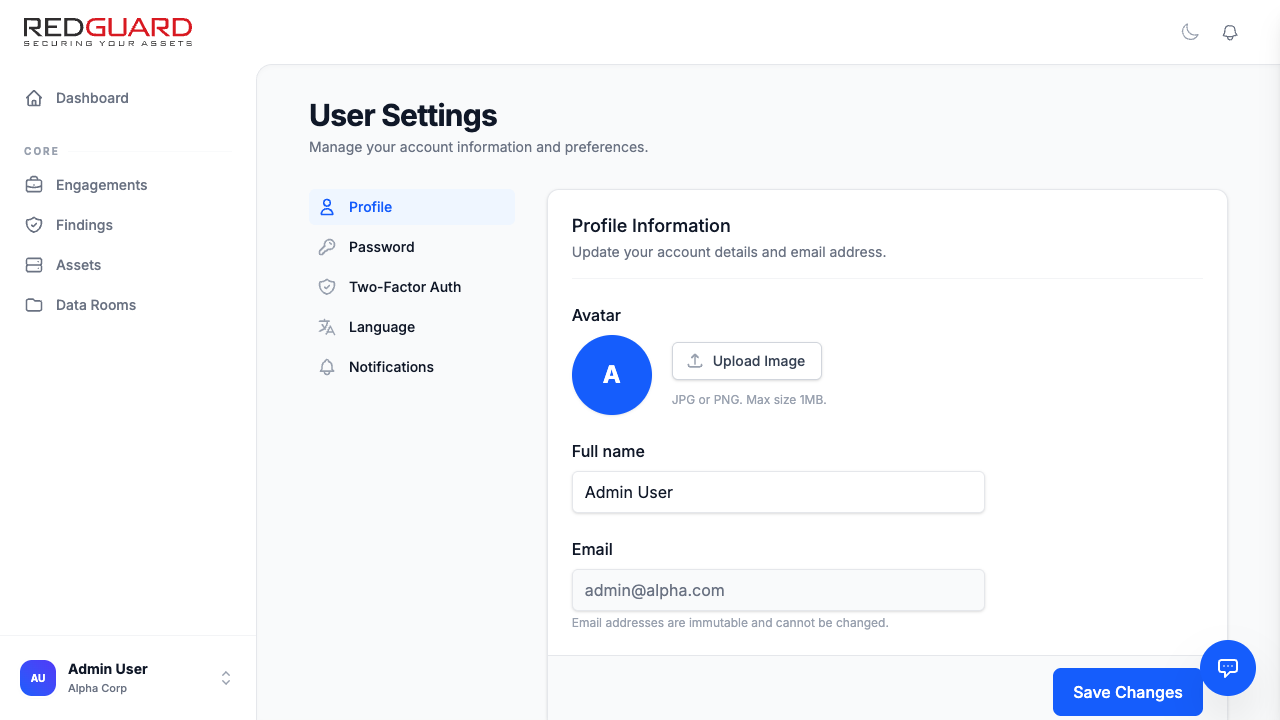
From the settings menu, you can configure:
- User Profile Details: Update your full name, email address, and avatar image.
- Change Password: Change your current Password to a strong, new one.
- 2-Factor-Authentication Setup and manage your 2-Factor-Authentication.
- Workspace Language: Switch your preferred locale (English/German).
- Notifications: Choose which events you want to be notified about in the application.
Two-Factor Authentication (2FA)
To ensure the highest standard of security for your sensitive vulnerability and asset data, the Redguard Portal supports Time-based One-Time Password (TOTP) Two-Factor Authentication.
If your organization administrator has enforced a 2FA requirement, you will be prompted to set up TOTP immediately upon login. You will not be permitted to view any organizational security dashboards or find records until 2FA is active.
Enabling 2FA
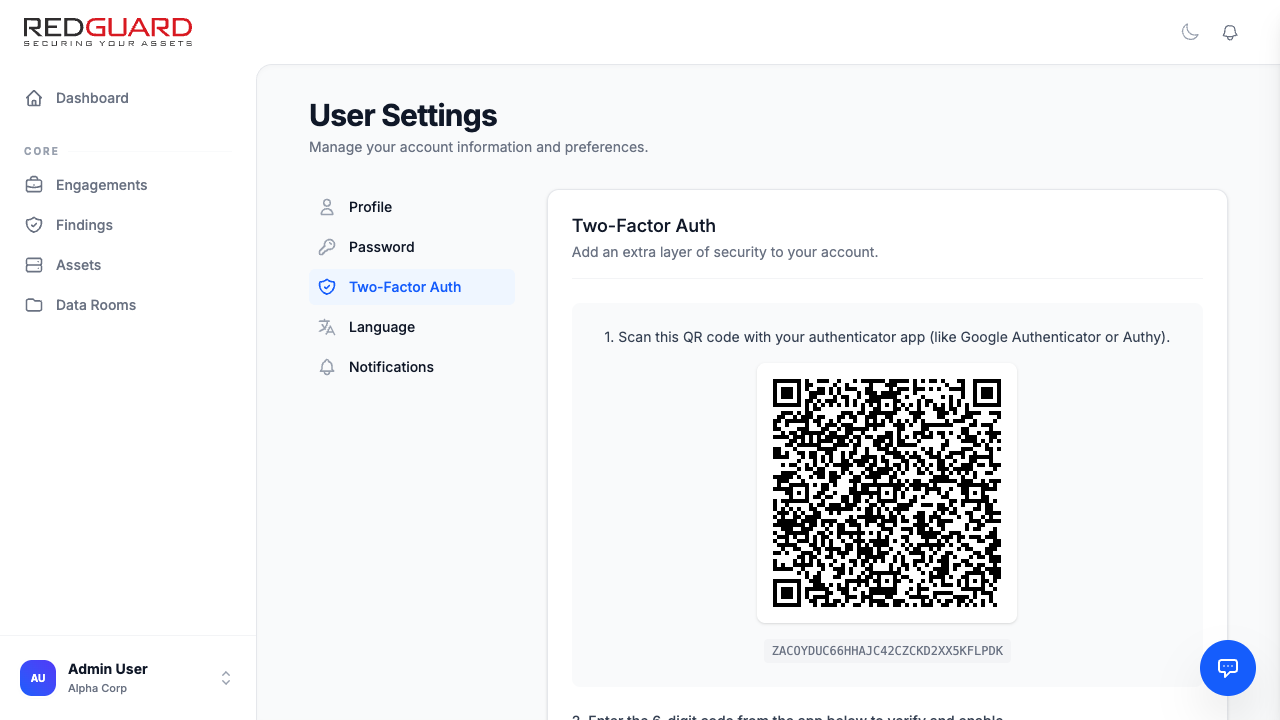
- Navigate to My Account > Two-Factor Authentication in the sidebar menu.
- Scan the generated QR Code using your authenticator app (e.g., Google Authenticator, Authy, or 1Password).
- Enter the current 6-digit TOTP code to verify and complete the setup.
- Save your provided backup recovery codes in a secure location. These can be used to access your account if you lose access to your authenticator device.
Switching Organizations
If you are a member of multiple organizations (e.g., a security consultant working with multiple clients, or an IT administrator managing multiple subsidiaries):
- Click on your profile card at the bottom of the Left Sidebar.
- Hover over the Switch Organization menu option.
- Select your desired organization from the list.
- The workspace shell will dynamically transition, updating your Dashboard, Findings, Assets, and Data Rooms to match the selected organization's scope and custom fields.